

Avoma’s Dialpad integration automatically imports your Dialpad calls into Avoma with recordings, transcripts, AI notes, CRM logging, and coaching insights—so teams review faster, keep CRMs clean, and improve call quality without extra admin.
With Dialpad + Avoma, calls become as actionable as your meetings: fully transcribed, summarized in your format, logged to your CRM, and analyzed for coaching.
Enable the Dialpad integration to get complete visibility across calls and meetings in one place.
Every Dialpad call is captured in Avoma with a full recording and accurate, searchable transcript.
Use transcripts to:
Avoma generates structured AI notes from each Dialpad call in the format your team needs—built around your checklist of must-cover points.
Use AI notes to:
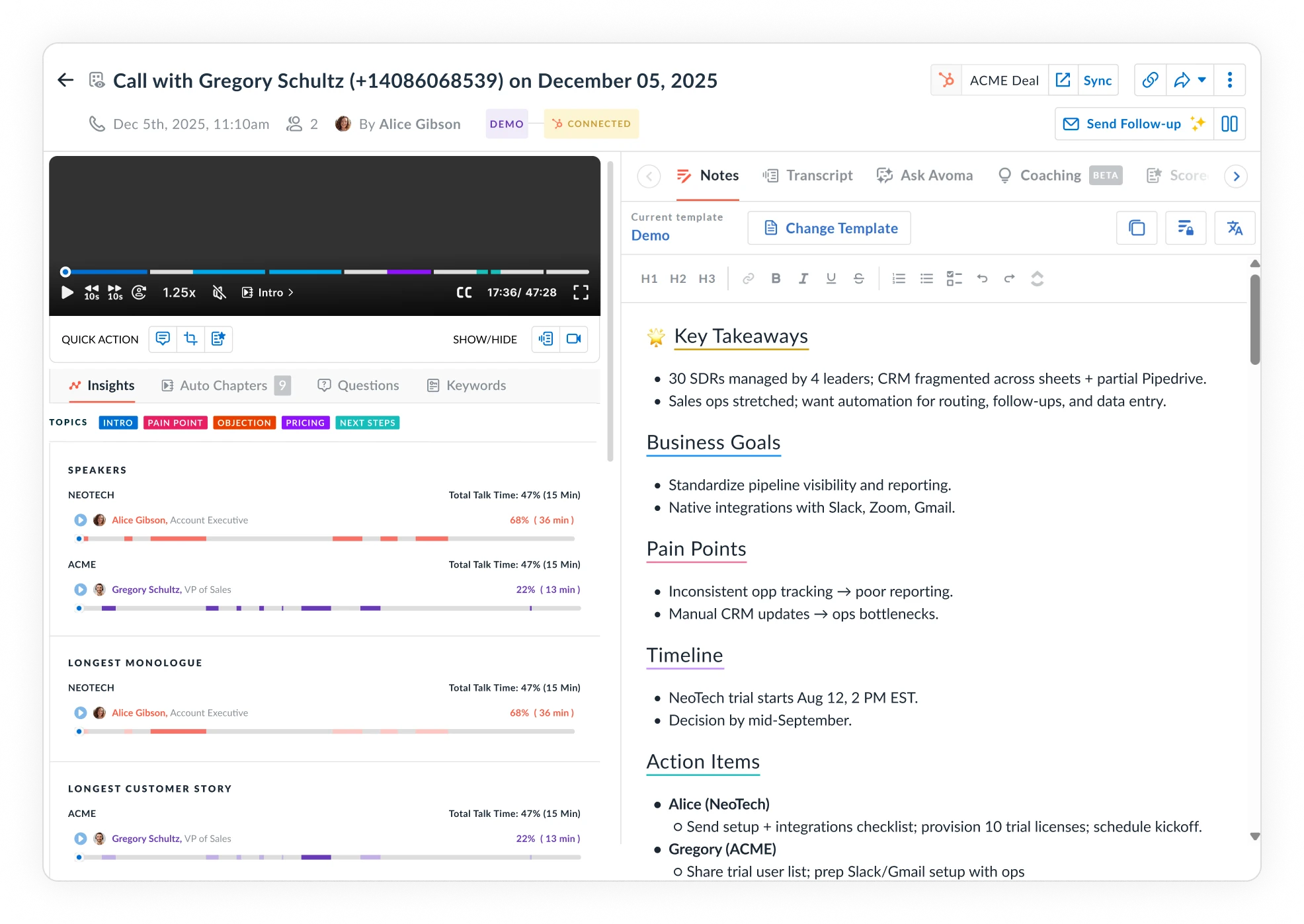
Avoma can automatically push Dialpad call notes and outcomes into leading CRMs like HubSpot and Salesforce.
Sync includes:
This keeps your CRM current and accurate without manual entry.
Avoma turns Dialpad calls into coaching data you can act on quickly.
You can:
Instead of reviewing random recordings, you get consistent quality signals across all calls.
Once enabled for your organization:
What syncs from Dialpad to Avoma:
What Avoma adds:
What Avoma logs to your CRM:
How quickly do Dialpad calls appear in Avoma?
Calls sync automatically on a rolling basis, so they show up shortly (approx 30 mins) after the call ends.
Do reps need to set anything up?
No, this is a one-time, organization-wide setup. Once the integration is enabled, calls sync automatically. See here for Avoma-Dialpad integration setup instructions.
Can we customize notes and scorecards for different teams?
Yes. You can create different templates and scorecards by call type and department.
Will Avoma change anything in Dialpad?
No. The integration is read-only and only retrieves call data.
What if some users use different emails across Dialpad and Avoma?
If some users have different email addresses in Dialpad and Avoma, their calls won’t sync automatically because the integration matches users based on email. To resolve this, create a mapping list that pairs each user’s Dialpad email with their corresponding Avoma email and share it with your Avoma contact. Once these mappings are configured, call syncing will work as expected for those users.
Can we disable the integration later?
Yes. You can revoke access in Dialpad or ask Avoma to disable it.
Connect Dialpad to Avoma to capture every call with transcripts, AI notes, CRM logging, and coaching insights, so teams spend less time on admin and more time improving conversations.


