Avoma Teams Chat Integration

Bring meeting takeaways into your Teams channels

Automatically share meeting summaries, decisions, and action items with your team in relevant Teams channels.

Turn Microsoft Teams into a hub for meeting intelligence with Avoma. Automatically surface meeting updates and important insights in the right Teams channels, giving everyone the context they need without chasing down recordings or searching across tools.

Keep decisions, takeaways, and next steps visible in the conversations where work moves forward.


Avoma integrates with Microsoft Teams in two ways

Choose the setup that matches how your team uses Teams.

1) Microsoft Teams Meetings (Video Conferencing)

Automatically capture, transcribe, and analyze Teams meetings inside Avoma.
Avoma imports your Teams cloud recordings, transcripts, and calendar context as soon as meetings end. You get AI summaries, searchable notes, speaker insights, and conversation intelligence in one place — plus optional CRM sync to log outcomes to Salesforce or HubSpot.
Learn more.

2) Microsoft Teams Chat (Alerts in Channels)

Post Avoma meeting alerts and key takeaways directly into Teams channels.
Once installed in Teams, Avoma sends automated alerts, keyword-triggered updates, and meeting takeaways to the right channels. This keeps teams aligned async, helps stakeholders stay in the loop without attending live, and ensures follow-ups happen where work already happens.
Set up Teams Chat.


Why teams connect Avoma to Microsoft Teams Chat

Meetings are where key decisions happen. But the outcomes often get buried in recordings, scattered notes, or delayed follow-ups. That slows decisions and creates misalignment across teams.

Avoma fixes that by pushing key takeaways directly into Teams channels, so the right people have the right context at the right time.
What you can do with Avoma + Microsoft Teams Chat

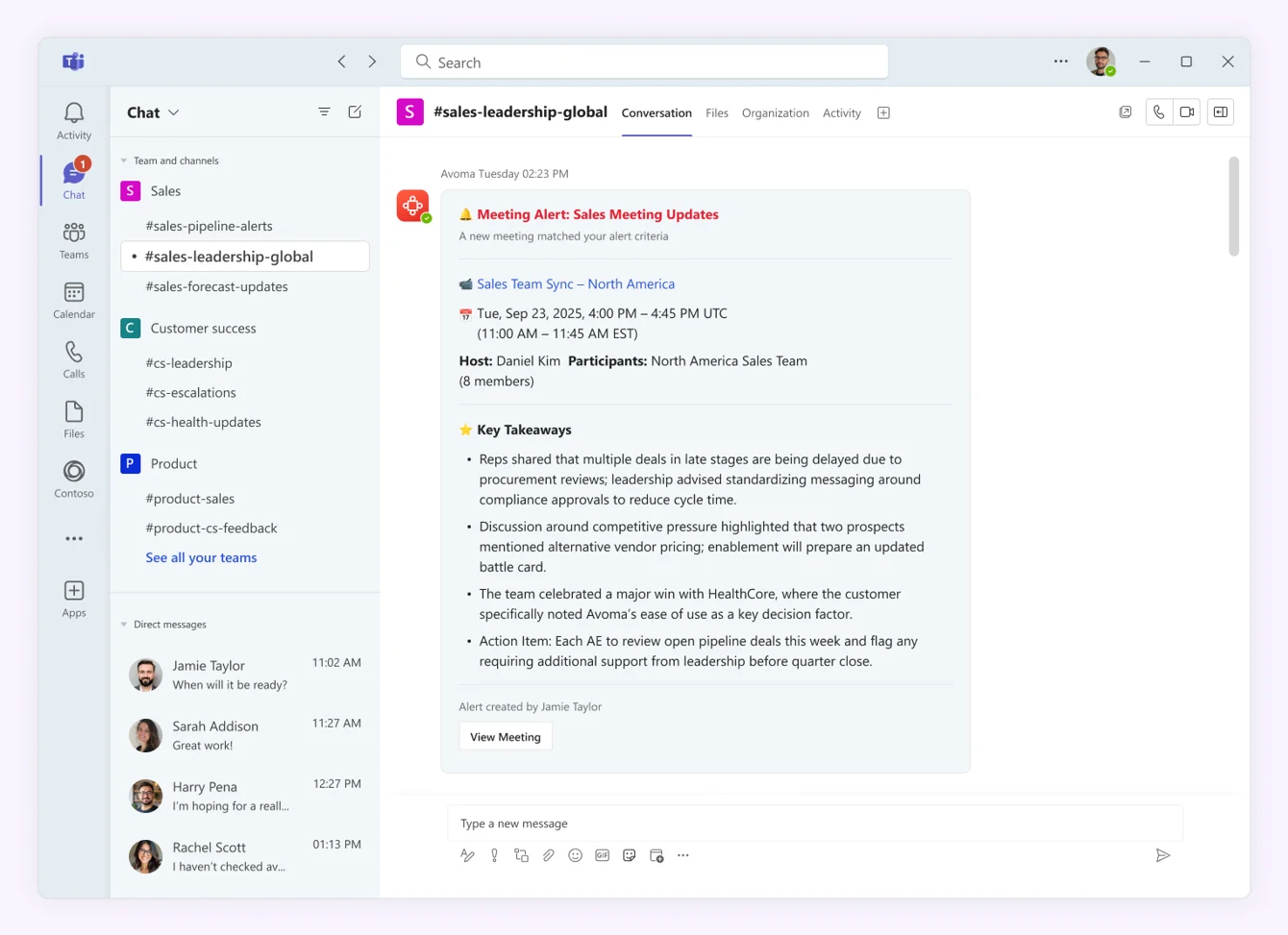
Get automated meeting alerts in Teams

  • Post meeting summaries and takeaways into selected Teams channels
  • Keep leadership and cross-functional teams aligned without extra pings
  • Ensure meeting outcomes don’t get buried in inboxes or dashboards
Screenshot of automated meeting alerts in Teams from Avoma
See key takeaways and alerts from Avoma posted automatically in Microsoft Teams Channels

Track keywords and important signals

  • Trigger alerts when specific topics come up in meetings
    (e.g., “pricing,” “security,” “competitor,” “renewal risk”)
  • Choose instant alerts or daily summaries depending on urgency
  • Reduce missed risks and opportunities across sales, CS, and product calls

Route insights to the right channels

  • Send different alerts to different Teams channels
  • Filter alerts by team, meeting type, deal stage, speaker, or purpose
  • Keep the right people in the loop without over-notifying everyone

Share outcomes without manual work

  • No copying notes into chat after every meeting
  • Stakeholders who didn’t attend still get context fast
  • Build an async culture around meeting follow-through

What CXOs, VPs, and revenue teams get

  • Never miss key takeaways
    Critical insights show up in Teams automatically, so they’re easy to find and act on without revisiting recordings.
  • Faster decisions and follow-ups
    Updates reach the right people instantly — while conversations are still fresh.
  • Better cross-functional alignment
    Sales, CS, RevOps, and internal teams stay in sync with shared visibility, reducing silos and project delays.

How it works

After setup, Avoma posts alerts into standard Teams channels you choose.

Alerts can be:

  • Keyword-triggered
  • Context-filtered
  • Instant or daily digest

So your Teams channels become the distribution layer for meeting intelligence.

Prerequisites (quick check)

  • Setup requires a Microsoft Teams Admin and an Avoma Admin.
  • You’ll need your Microsoft Tenant ID from Azure AD / Microsoft Entra ID.
  • Alerts currently work in standard channels (not private channels).

Set up Microsoft Teams Chat alerts

Follow the step-by-step guide in our Help Center to install the Avoma Teams app and start sending meeting alerts to channels.

Set up Teams Chat.

CTA Circles imageCTA Circles image

What's stopping you from turning every conversation into actionable insights?

Get started today.

It just takes a minute to set up your account.
No credit card is required. Try all features of Avoma for free.